



INTRODUCING

Table Of Content

The Table of Content widget lets you create a list of all the important headings of your blogs and web pages in just a few clicks.

Discover Table Of Content!

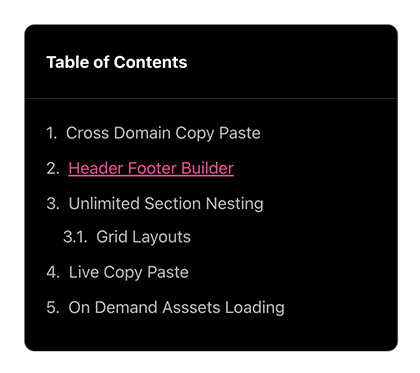
The HappyAddons’ Table of Content widget lets you create a list of all the important headings of your blogs and web pages in just a few clicks. It allows you to add mixed flavors to your heading list and makes it appealing to the readers.
Toc default1

Designs

Design 1

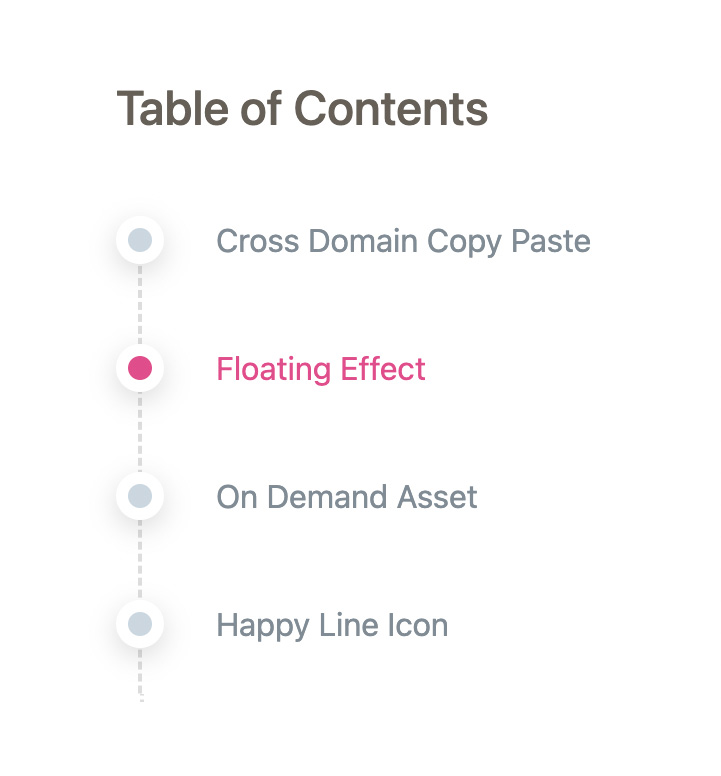
Timeline

Bring stylish and useful timeline view to your Table of Content. 

Toc timeline

Design 2

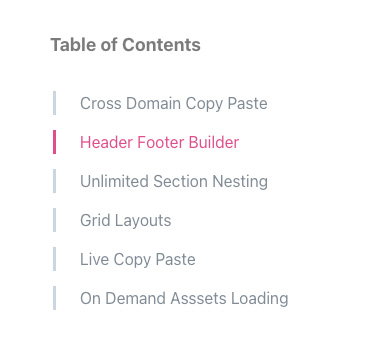
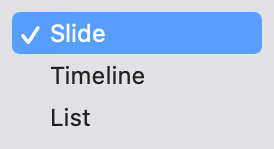
Slider

Display your Table Of Content with a slider effect where the bullet points are stand by and the text content slides from right.

Toc slider

Design 3

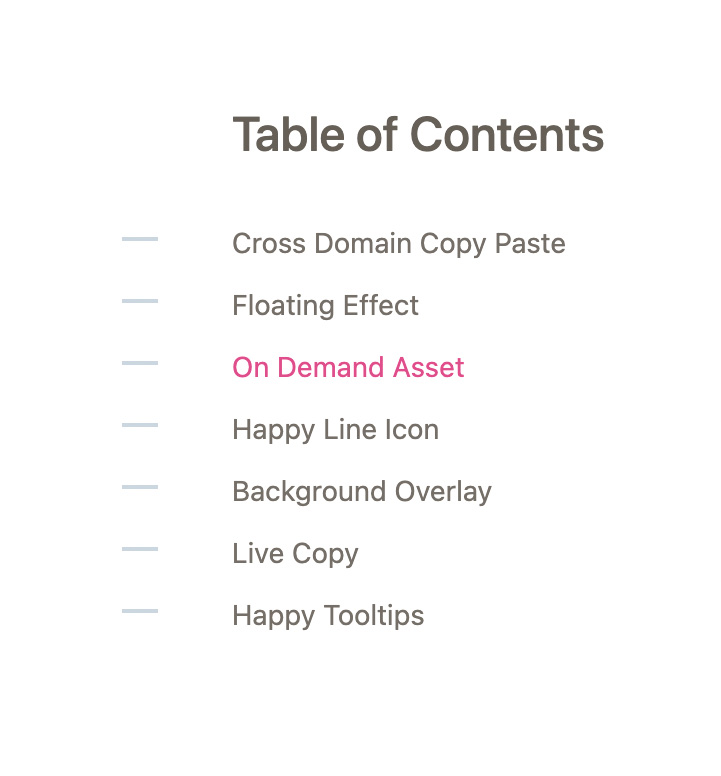
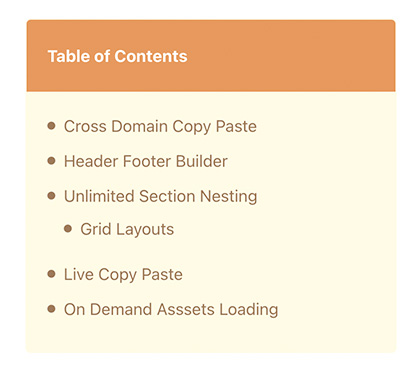
List

Show your table of content in a simple and general listing view with bullet or some unique symbols.

Toc list1

Design 4

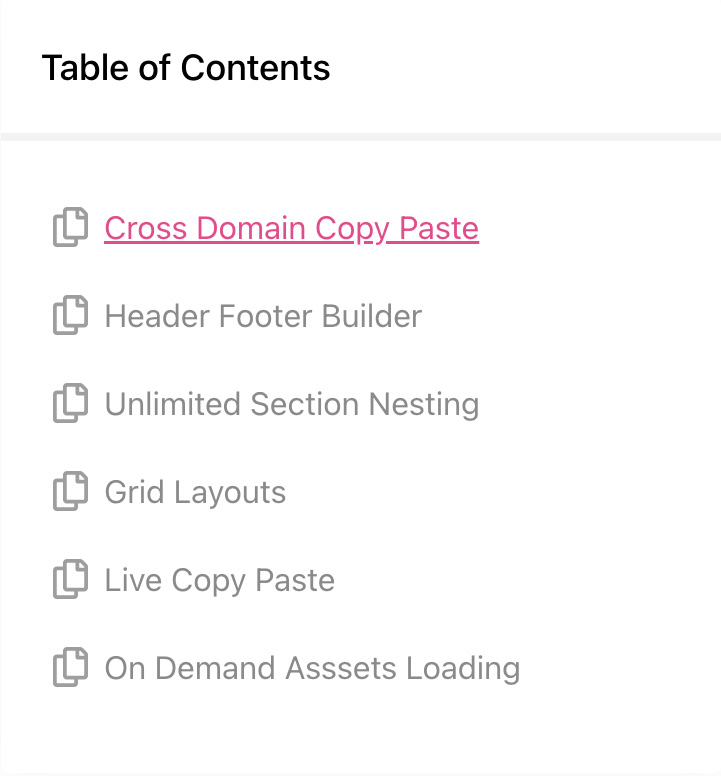
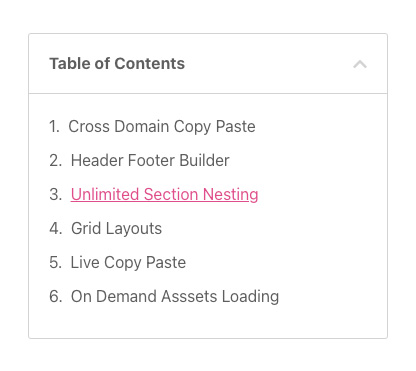
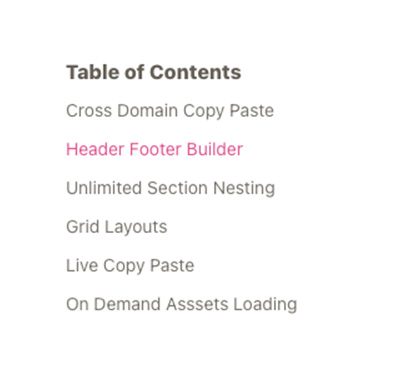
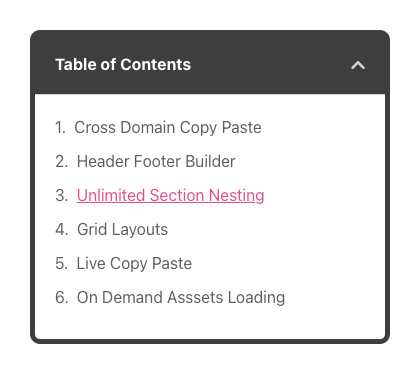
Default

Here is some generic view of Table of Content  with bullet point, number as well as no without bullet or number.

Toc default2
Toc design4
Toc design2
Toc design1
Toc design3

3 Easy Steps

To Add Table of Contents in Elementor

01

Add Heading

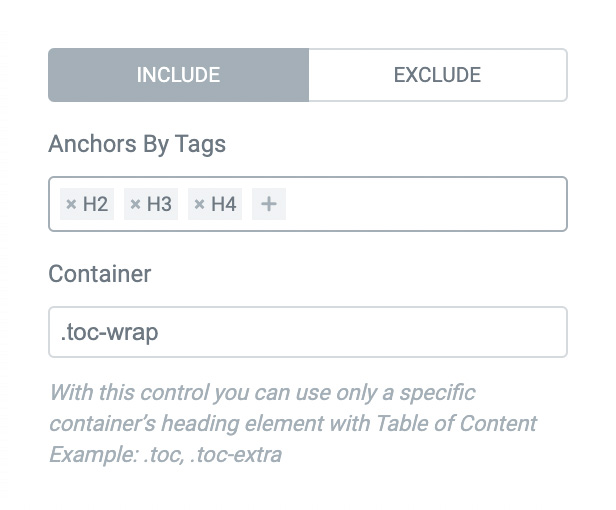
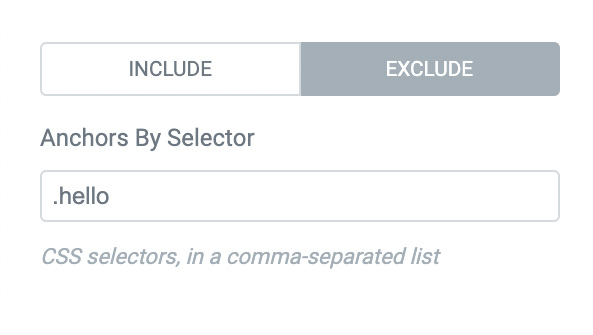
Add and remove H-tags from the ‘Anchors By Tags’ option. It will automatically change the heading in your Table of Contents.
Toc heading include
Toc heading exclude
Toc styletab

02

Drag & Drop Widget

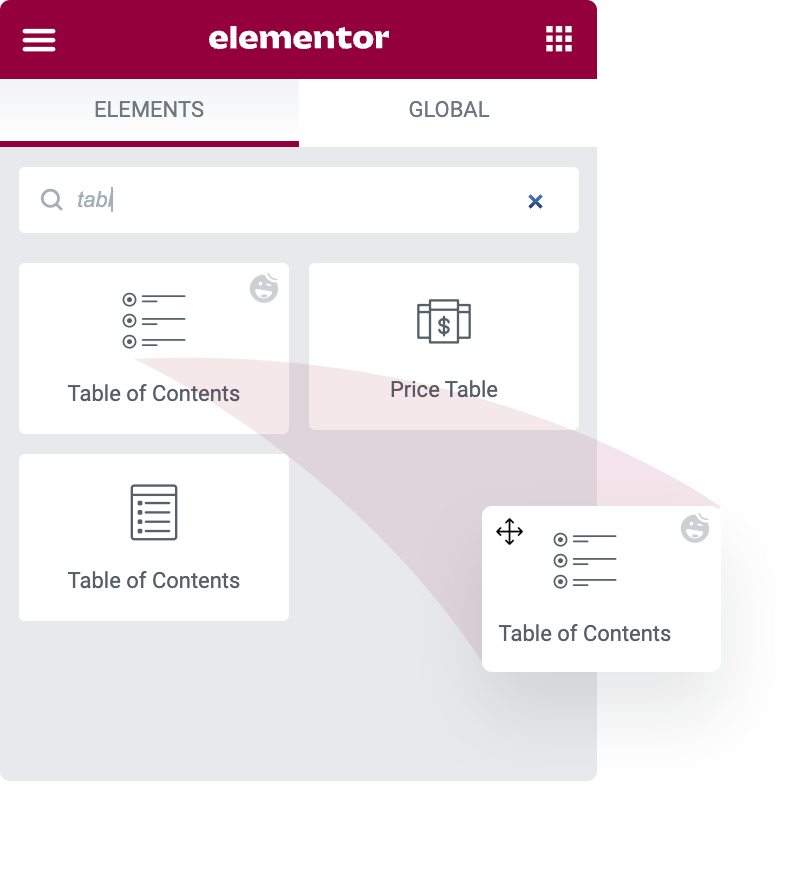
Find the ‘Table of Content’ widget from the Elementor widget area. Drag and drop it into a suitable place on your canvas.

03

Personalize Style

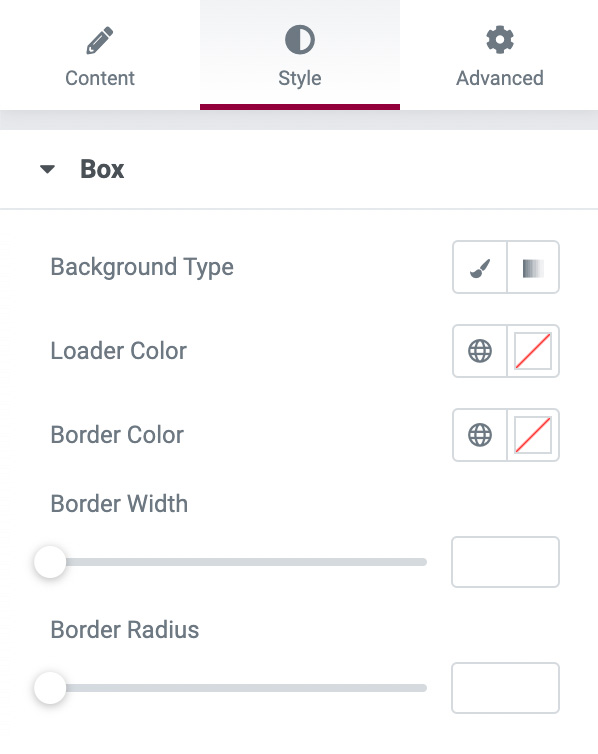
You can customize the color, typography, boxshadow, border radius and many more style of your table of contents.
Toc style
Toc dropdown

Sticky Feature

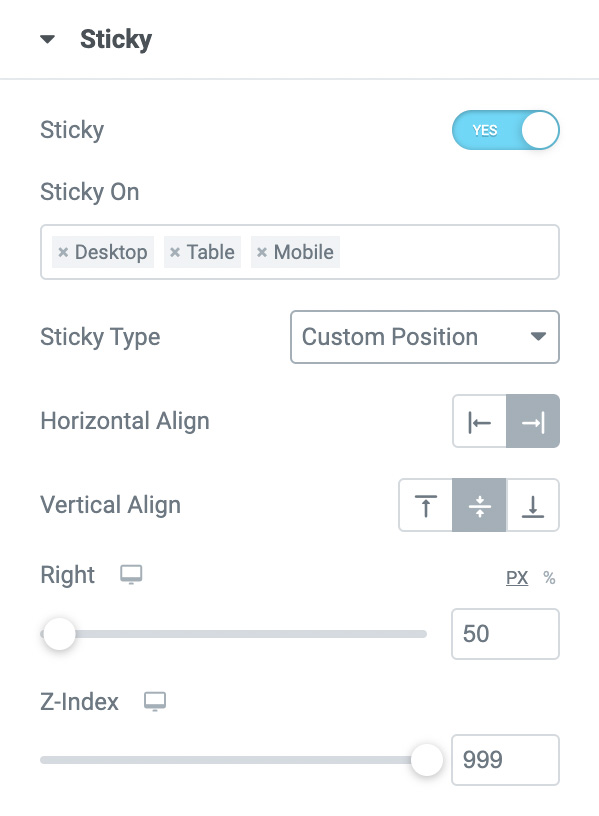
Advanced Sticky Position

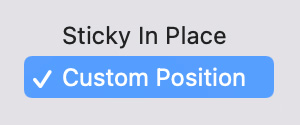
You can define here the custom position for your table of contents. You can align it horizontally, vertically, or in other ways.
Toc sticky
Toc custom sticky

HappyAddons is making 

your life easier